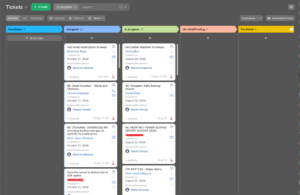
See how we turned a telecom NOC's shared mailbox into Bitrix24 tickets, with auto-priority, threaded replies and real emails on every ticket.
If you’ve ever worked in a Network Operations Centre, you know the inbox never sleeps. Outage alerts, customer complaints and vendor updates all pile into one shared mailbox, and somebody has to make sense of it.
That was everyday life for one of our clients, a telecom operator. Their NOC team was great at fixing problems. What slowed them down was everything around the fix: working out who had picked up an email, digging for the earlier message in a thread, and guessing which issue was most urgent.
So we connected their NOC mailbox to Bitrix24. Now every email turns into a ticket on its own, and the team spends its time on the work instead of the inbox. Here’s how we did it.
Why a Shared Inbox Stops Working
A shared mailbox is fine when ten emails arrive a day. At a few hundred, the cracks start to show.
Two engineers reply to the same customer because neither knew the other had it. A customer writes back with an update, and it lands as a fresh email, cut off from the original issue. A full network outage sits in the list right next to a password reset. And when a manager asks how many issues are still open, nobody can answer without a lot of scrolling.
The team already ran their CRM in Bitrix24, so they asked us a simple question: could the tickets live there too? There was one condition. Their customers shouldn’t have to change a thing. They’d keep emailing the NOC, just like before.
What We Built
1. Every email becomes a ticket
Every minute, the system checks the NOC mailbox. A new email becomes a new ticket in Bitrix24, linked to whoever sent it. If we’ve never heard from that sender before, their contact is created on the spot. From there, Bitrix24’s own automation hands the ticket to the right engineer.
2. Replies land in the right place
This was the part the team cared about most. When a customer replies, the email goes to the ticket it belongs to, not into a new one. We use the email’s thread details to find the match, and fall back to the sender and subject when those are missing. Once a ticket is closed, it stays closed. A new email simply starts a new ticket.
3. Urgent issues rise to the top
The system reads each email and sets the priority for you. Words like “network down” or “P1” make it an Emergency straight away. It also tells incidents apart from service requests and simple questions. We tuned these rules to the way this team actually writes, and they’re easy to adjust.
4. The actual email, right on the ticket
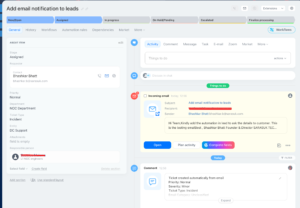
We didn’t want engineers reading copy-pasted text. Each email shows up on the ticket as a real Bitrix24 email, with its formatting and attachments intact. Engineers can read it and reply to the customer without ever leaving the ticket.
5. A sign-in Microsoft is happy with
Partway through the project, we hit a wall. Microsoft 365 no longer lets apps read a mailbox with just a password. So we switched to Microsoft’s own sign-in page, the same secure method Bitrix24 uses. The team signed in once, and the connection now keeps itself alive. No password is saved anywhere in the system.
What Happens Behind the Scenes
For the technically curious, here’s what happens every minute:
- A scheduled job wakes up on the server.
- It pulls any new emails from Microsoft 365 through the Microsoft Graph API.
- It finds the sender in Bitrix24, or adds them as a new contact.
- It looks for an open ticket from the same thread or with a matching subject.
- It adds the email to that ticket, or opens a new one, attachments and all.
- It marks the email as read.
If anything goes wrong along the way, the email simply stays unread and gets picked up on the next run. Nothing slips through the cracks.
Under the hood, it’s PHP talking to the Bitrix24 REST API and Microsoft Graph. It runs on ordinary web hosting, there are no extra servers to look after, and it keeps a log of everything it does.
Could This Work for Your Team?
We built this for a NOC, but the idea isn’t limited to telecom. If work reaches your team by email, it can reach Bitrix24 as a ticket instead. The same approach fits:
- IT and network operations teams
- Customer support and helpdesks
- Facility and maintenance requests
- Vendor and partner escalations
It works with Microsoft 365 and standard IMAP mailboxes, and with any Bitrix24 smart process or pipeline. The priorities, ticket types and matching rules are shaped around how your team already works.
Let’s Talk
Is your team still sorting requests out of a shared inbox? We’d be glad to help.
We’re Sarasuk Tech, a Bitrix24 Gold Partner, and building connections like this is the kind of work we enjoy most. Tell us how your team handles requests today, and we’ll show you what it could look like in your Bitrix24.
Talk to an Expert or WhatsApp us.